This connector is available exclusively in Collate and is not part of the open-source OpenMetadata distribution.
Requirements
Metadata
To extract pipeline metadata from Microsoft Fabric, you need to authenticate using an Azure Service Principal. The Service Principal must have the following:- A registered Azure AD application with
clientId,clientSecret, andtenantId - The Service Principal must be added as a Member of the Microsoft Fabric workspace containing the Data Pipelines
- In the Microsoft Fabric Admin Portal, the setting “Service Principals can use Fabric APIs” must be enabled
- List all Data Pipelines in the specified workspace
- Retrieve pipeline activity (task) definitions
- Fetch pipeline run history with activity-level execution status
Azure Service Principal Setup
- Register an application in Azure Active Directory
- Create a client secret under Certificates & secrets
- Note the Application (client) ID, Directory (tenant) ID, and the client secret value
- In the Microsoft Fabric Admin Portal, enable “Service Principals can use Fabric APIs” under Developer settings
- In your Fabric workspace, add the Service Principal as a Member or Admin
- Note the Workspace ID from the workspace URL:
https://app.fabric.microsoft.com/groups/<workspace-id>/...
Metadata Ingestion
Connection Options
Connection Options
- Workspace ID: The Microsoft Fabric workspace ID where the pipelines are located. Found in the workspace URL:
https://app.fabric.microsoft.com/groups/<workspace-id>/.... - Client ID: Azure Application (client) ID for Service Principal authentication.
- Client Secret: Azure Application client secret for Service Principal authentication.
- Tenant ID: Azure Directory (tenant) ID for Service Principal authentication.
- Authority URI (Optional): Azure Active Directory authority URI. Defaults to
https://login.microsoftonline.com/. - Pipeline Filter Pattern (Optional): Regex to only include/exclude pipelines that match the pattern.
Test the Connection
Once the credentials have been added, click on Test Connection and Save the changes.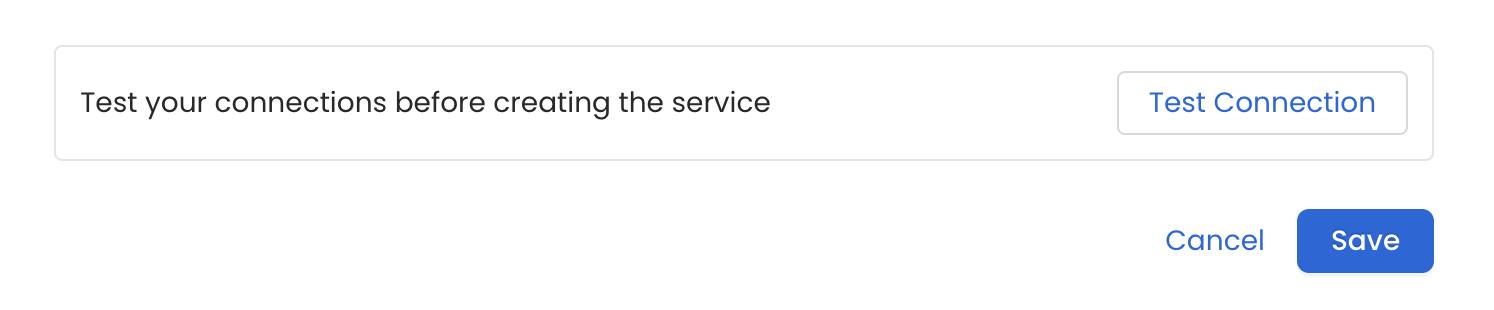
Configure Metadata Ingestion
In this step we will configure the metadata ingestion pipeline,
Please follow the instructions below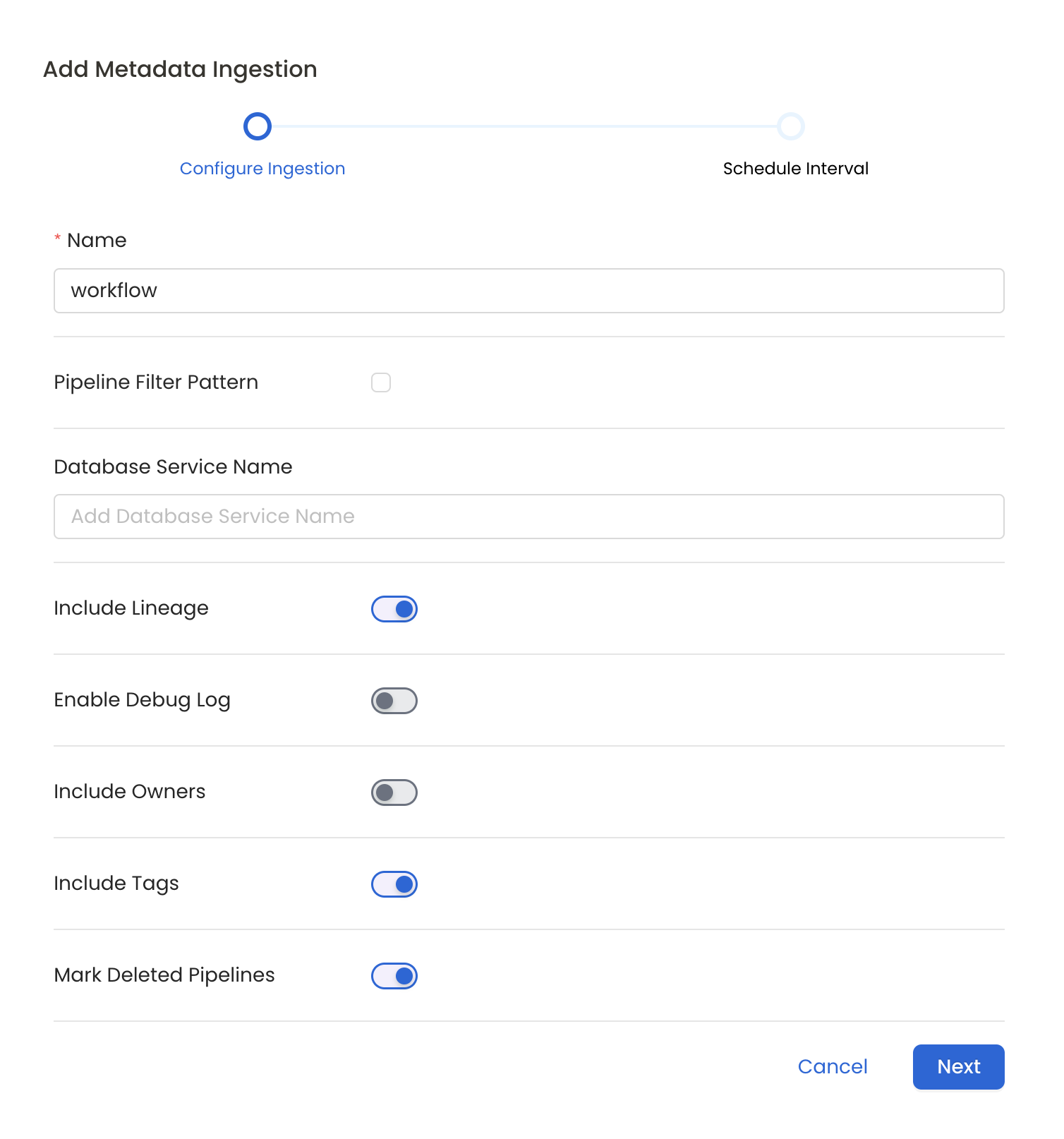
Metadata Ingestion Options
- Name: This field refers to the name of ingestion pipeline, you can customize the name or use the generated name.
- Pipeline Filter Pattern (Optional): Use to pipeline filter patterns to control whether or not to include pipeline as part of metadata ingestion.
- Include: Explicitly include pipeline by adding a list of comma-separated regular expressions to the Include field. OpenMetadata will include all pipeline with names matching one or more of the supplied regular expressions. All other schemas will be excluded.
- Exclude: Explicitly exclude pipeline by adding a list of comma-separated regular expressions to the Exclude field. OpenMetadata will exclude all pipeline with names matching one or more of the supplied regular expressions. All other schemas will be included.
- Include lineage (toggle): Set the Include lineage toggle to control whether to include lineage between pipelines and data sources as part of metadata ingestion.
- Enable Debug Log (toggle): Set the Enable Debug Log toggle to set the default log level to debug.
- Mark Deleted Pipelines (toggle): Set the Mark Deleted Pipelines toggle to flag pipelines as soft-deleted if they are not present anymore in the source system.
Schedule the Ingestion and Deploy
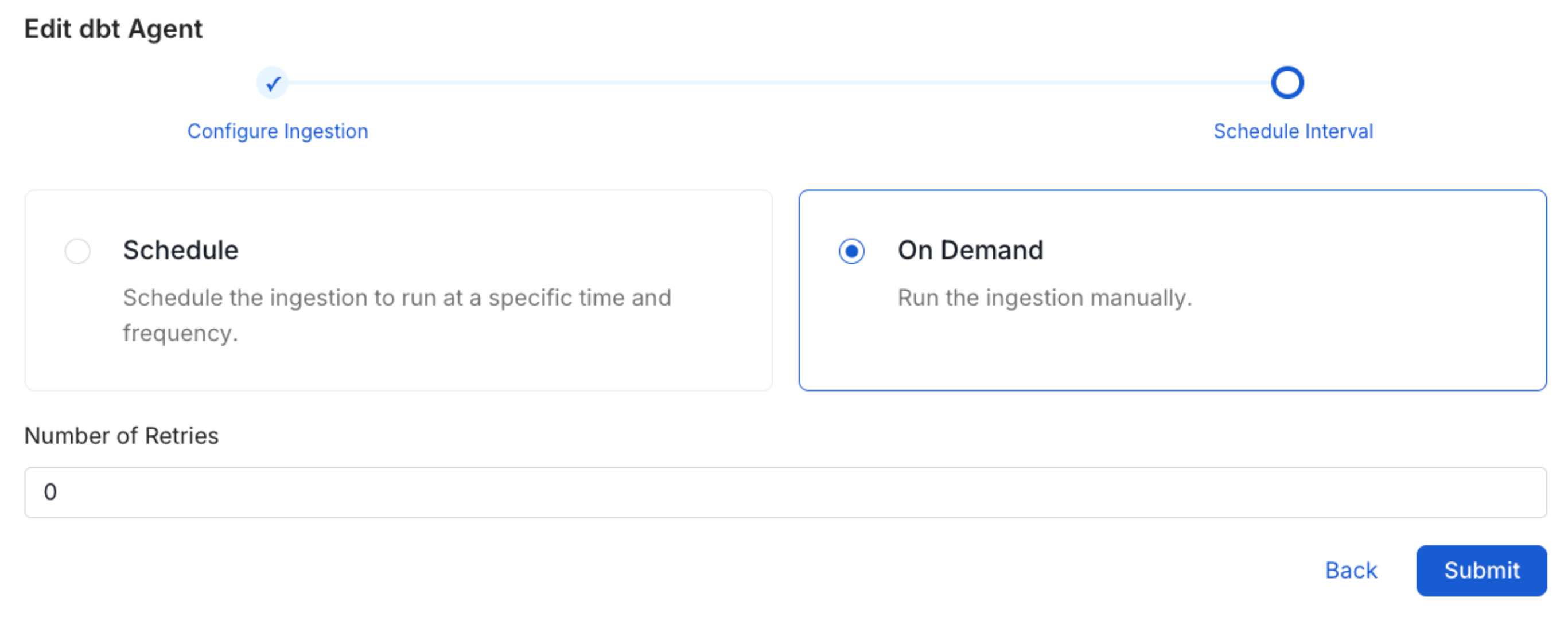
Scheduling can be set up at an hourly, daily, weekly, or manual cadence. The
timezone is in UTC. Select a Start Date to schedule for ingestion. It is
optional to add an End Date.Review your configuration settings. If they match what you intended,
click Deploy to create the service and schedule metadata ingestion.If something doesn’t look right, click the Back button to return to the
appropriate step and change the settings as needed.After configuring the workflow, you can click on Deploy to create the
pipeline.